
How to connect
How would you like to start?
Choose your situation. See just the steps you need.
Prepare a fresh copy of the game
Drahy's Legacy Program downloads the required data and checks the client on your computer.
Download the programYou need a server account to play
To sign in to the game, you need an account on drahy.com. The program does not create it automatically.
Use the same username and password on the website and in the game. Complete account activation if requested. Downloading and preparing the game work without signing in.
How the game is prepared on your computer
We host the program, not the original game disc or patches. The program downloads Blizzard’s original Wrath of the Lich King 3.0.1 disc and 11 official enGB patches from the Internet Archive. Each download is checked against its SHA-256 checksum.
It extracts the game on your computer, applies the patches in order up to 3.3.5a (build 12340), checks all 169 reference files and configures the connection to Drahy’s Legacy Server. This is a local build from the original files, rather than a prebuilt client archive.
About 10.4 GB is downloaded; allow approximately 31 GB during preparation. The finished game uses about 16.6 GB. After full verification, temporary downloads are removed where possible; a cleanup warning does not block the ready game. Pause and resume are supported; another existing game copy stays unchanged.
If an installation source disappears before use, the program restores and verifies that source once while keeping the other downloads. If setup stops, include the local installation log shown in the error message: %LOCALAPPDATA%\DrahysLegacy-program\Logs\setup.log. Logs are not sent automatically.
Open CLIENT in the program
Download and run Drahy's Legacy Program. It does not need to be installed.
Choose DOWNLOAD and a folder
The program prepares a new game copy. You can pause the download and continue later.
When setup finishes, choose PLAY
Sign in with your drahy.com account. The server address is already configured.
Connect your existing game
Use your own WoW 3.3.5a client. Drahy's Legacy Program can select its folder and configure the server.
Download the programYou need a server account to play
To sign in to the game, you need an account on drahy.com. The program does not create it automatically.
Use the same username and password on the website and in the game. Complete account activation if requested. Downloading and preparing the game work without signing in.
Open CLIENT and choose CHANGE FOLDER
Select your game folder containing Wow.exe.
Use Drahy's Legacy Server
If the program offers this action, apply it to the selected game. You can restore the original setting in TOOLS.
Check the game and choose PLAY
Sign in with your drahy.com account. If the program knows several games, choose the right folder in its game selector.
Windows blocked the first launch?
Save DrahysLegacy.exe in your own folder and run it. This portable program needs no installation. The EXE currently has no digital publisher signature. First check that you downloaded it from www.drahy.com.
Microsoft Defender SmartScreen: “Windows protected your PC”
If this ordinary SmartScreen warning offers the option, select More info, check the app name, then select Run anyway. This allows this launch without disabling system protection. Device policy may prevent continuation.

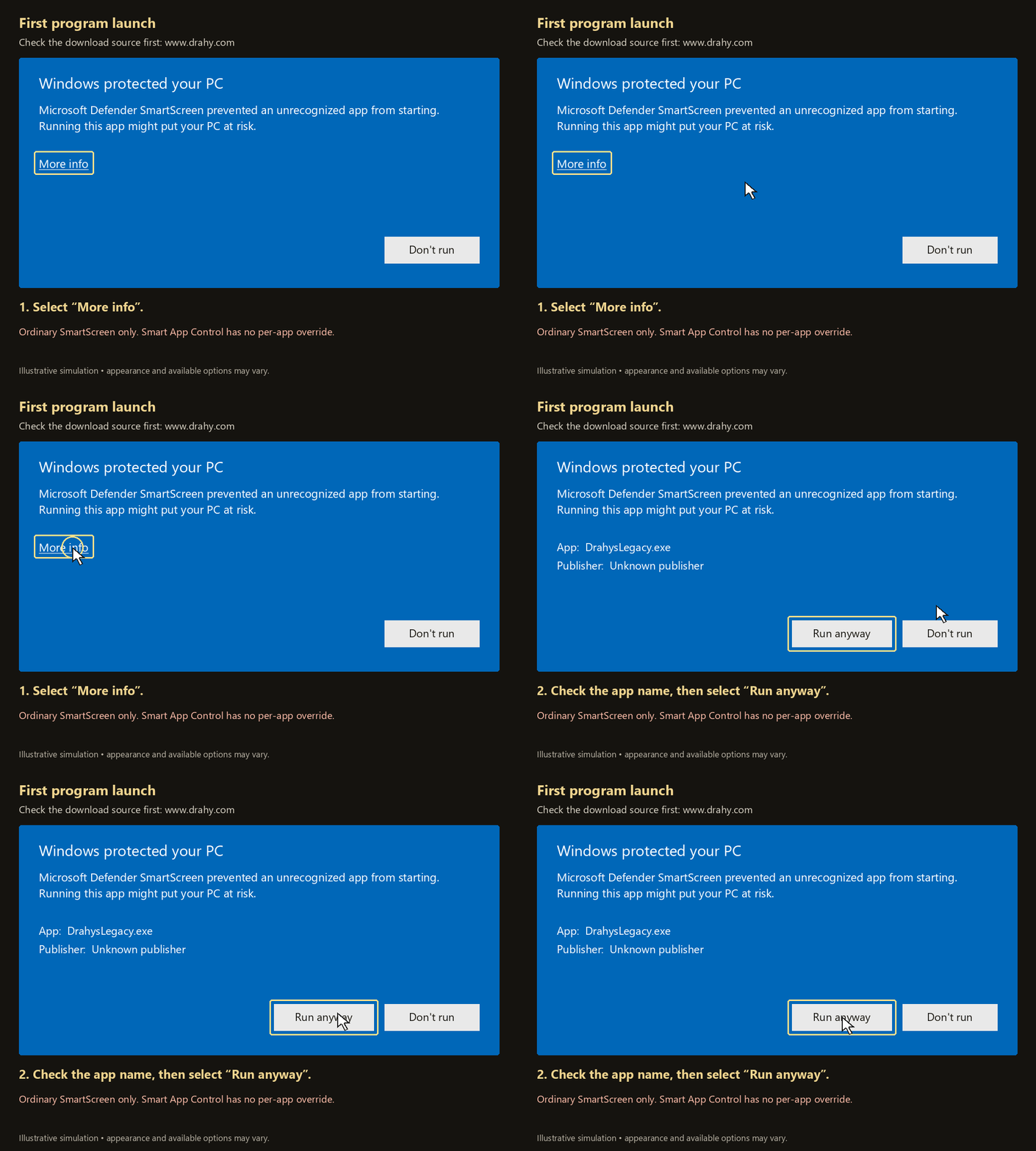
Smart App Control: a different block
Smart App Control has no per-app exception. “More info → Run anyway” does not bypass it. If its blocking message appears, this tutorial cannot enable the program while keeping Smart App Control enabled. Do not disable security for this guide. We are investigating trusted code signing; a signed release is not available yet.
Install or update optional addons
In ADDONS, select the packages you want and choose INSTALL SELECTED. Review the destination, author versions, DL editions and file states before confirming. Matching selected packages will be installed again; modified managed addons are protected.
The full-width progress bar shows the current addon and phase. A remaining-time estimate appears after steady measurements. Keep the game closed until the result appears. Problems are shown immediately; expand Installed addons to review successful packages.
Original player folders are backed up. WTF settings and unrelated addons are kept. Use UNINSTALL for a managed addon to remove it and restore preserved original folders when available.
I prefer to connect manually
You need your own WoW 3.3.5a (build 12340) client and a drahy.com account.
- Back up
Data\enGB\realmlist.wtf(enUS, deDE, etc. for your client's language). - Open it in Notepad and replace only the
set realmlistline:
set realmlist drahy.comKeep the other lines, save, start Wow.exe and sign in. Follow account activation instructions if required.